An admin’s guide to getting started with Custom Agents
Learn how to purchase credits, set credit limits, and monitor usage so your team can scale Custom Agents with confidence.
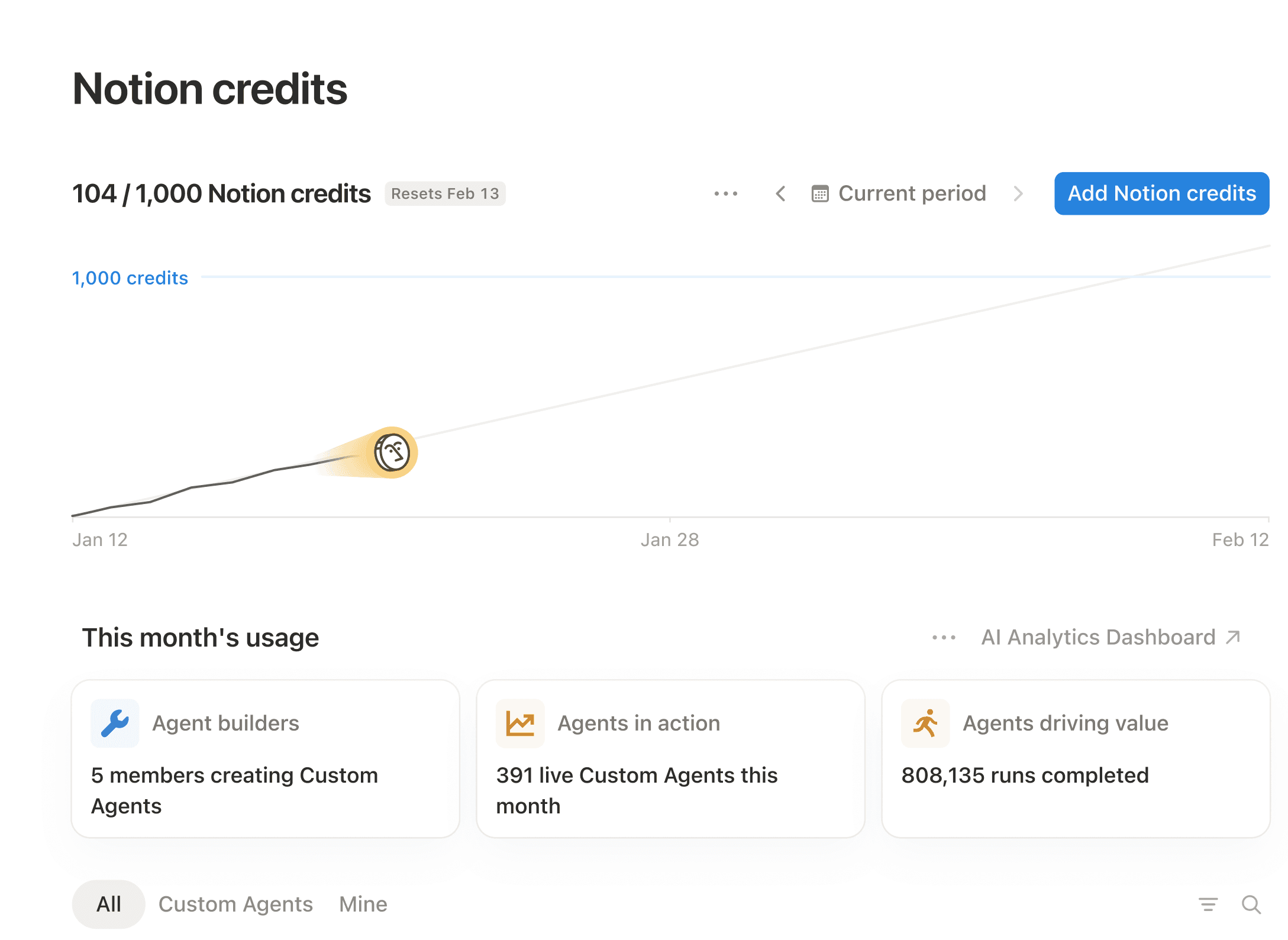
Your team has already started spotting the busywork they want to automate: recurring tasks, manual handoffs, and the same questions that come up again and again. Custom Agents are how you begin to take that on.
As an admin, your role is to set your team up for success and keep things running smoothly as Custom Agents scale. A few intentional choices now will give your team the room to move fast while maintaining visibility into spend.
In this guide, we'll walk you through three phases:
Lay the groundwork: Understand what drives costs, purchase credits, and choose who builds first
Monitor and tune: Track what your agents deliver and optimize as you go
Scale with confidence: Build on early wins and widen access across more teams

Starting May 4, 2026, Custom Agents run on Notion credits
If you’re new to Custom Agents, you can purchase credits anytime from your Notion credits dashboard. If your workspace has agents from the beta, they’ll continue running until your next monthly service date on or after May 4. After that, you’ll need credits to keep them active. Learn more about Notion credits →
Before anyone builds their first Custom Agent, it's worth getting a handle on the economics, choosing who should build first, and putting the right guardrails in place. Think of it like setting up the playing field so your team can move fast once they’re on it.
1) Understand what drives credit usage
Before you estimate how many credits to buy, it helps to know what makes one agent cost more than another.
Three main factors shape how many credits each run uses:
How much the agent reads: Searching more content, reading longer pages, or scanning larger databases uses more credits.
How many steps it takes: Each action the agent performs adds to the cost. A simple routing agent costs less per run than one that searches, writes, and notifies.
How often it runs: An agent triggered every hour will use far more credits over a month than one that runs weekly.
Often, a small tweak to one of these factors can optimize costs without changing what the agent delivers.

2) Purchase credits
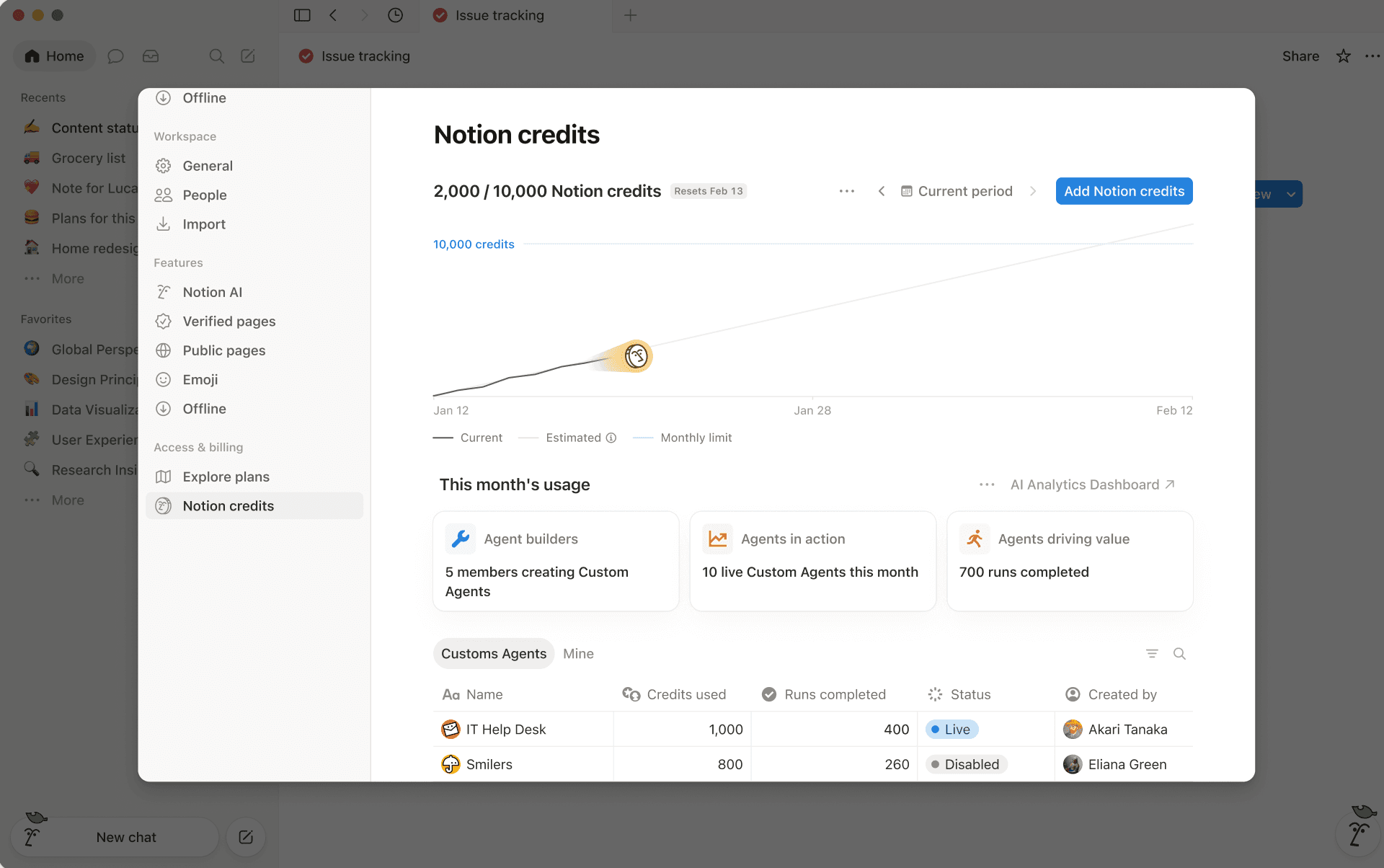
Credits renew monthly, so you're sizing for what your agents will use each month. The most reliable way to get that number is from your usage history.
Open your Notion credits dashboard to see which agents have been running and how many credits each one consumed. That’s your baseline for a confident first purchase.

Find your baseline before you scale
Here are a few ways to right-size your setup:
Start with your highest-use agents: Identify the Custom Agents your team relies on most. They’ll likely account for the majority of your spend and give you a solid baseline.
Factor in frequency, not just complexity: A simple agent that runs hourly can cost more over time than a complex one that runs weekly. Multiply the cost per run by expected monthly runs to get a clearer estimate.
Check in monthly at first: Usage will shift as your team builds and refines agents. Reviewing your dashboard each month early on helps you dial things in. Once things stabilize, you can check in less often.
When you’re ready, click Add Notion credits from the dashboard. You’ll see pre-set tiers that start in the hundreds and scale into the thousands. If you work with an account team, they can help you plan and explore additional options.
3) Manage who can create Custom Agents
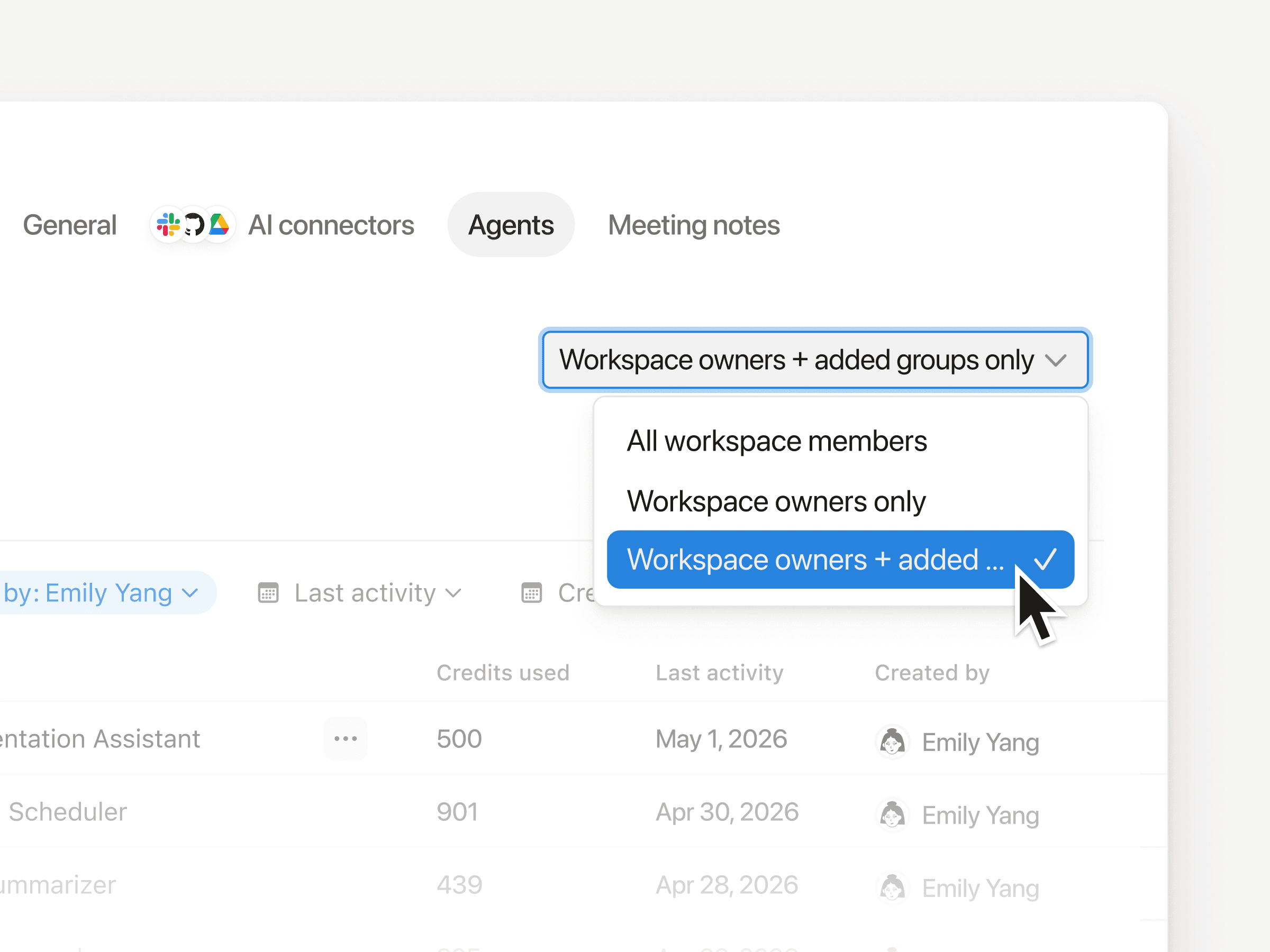
Opening creation to everyone on day one is tempting, but starting with a smaller group helps you build a strong foundation first.
Start small: Begin with a handful of team leads, with clear automation use cases. Give them space to build and refine the first agents.
Learn what works: You’ll quickly see which workflows drive value and what guardrails are needed. Turn those early wins into a playbook.
Scale with confidence: Expand gradually so each new creator builds on proven patterns and your team can move faster over time.
To control creation access, head to Settings → Notion AI → Agents. You can open it up to everyone or limit it to specific groups. Learn more in Custom Agents sharing and permissions.
4) Set credit limits that let creators experiment freely
Per-agent credit limits give your creators room to build and iterate while keeping overall spend predictable. You set a cap, and if an agent reaches it, it pauses on its own and the creator gets notified so they can adjust.
A few tips for getting limits right:
Start with real usage plus a little buffer: It's easy to increase a limit once an agent proves its value. Check in monthly at first, then adjust as usage becomes more predictable.
On Enterprise, set a default limit for all agents: For example, you might start every agent with a 1,000-credit cap. This gives you broad coverage without having to configure each one individually, while still leaving room for increases when needed.
Share ownership with creators: Creators can set limits on their own agents, so it's not all on you. If they need more, they can request an increase directly in the product, and you'll get a prompt to review and approve it.
When you set a credit limit, the creator gets a notification so they know exactly where they stand.
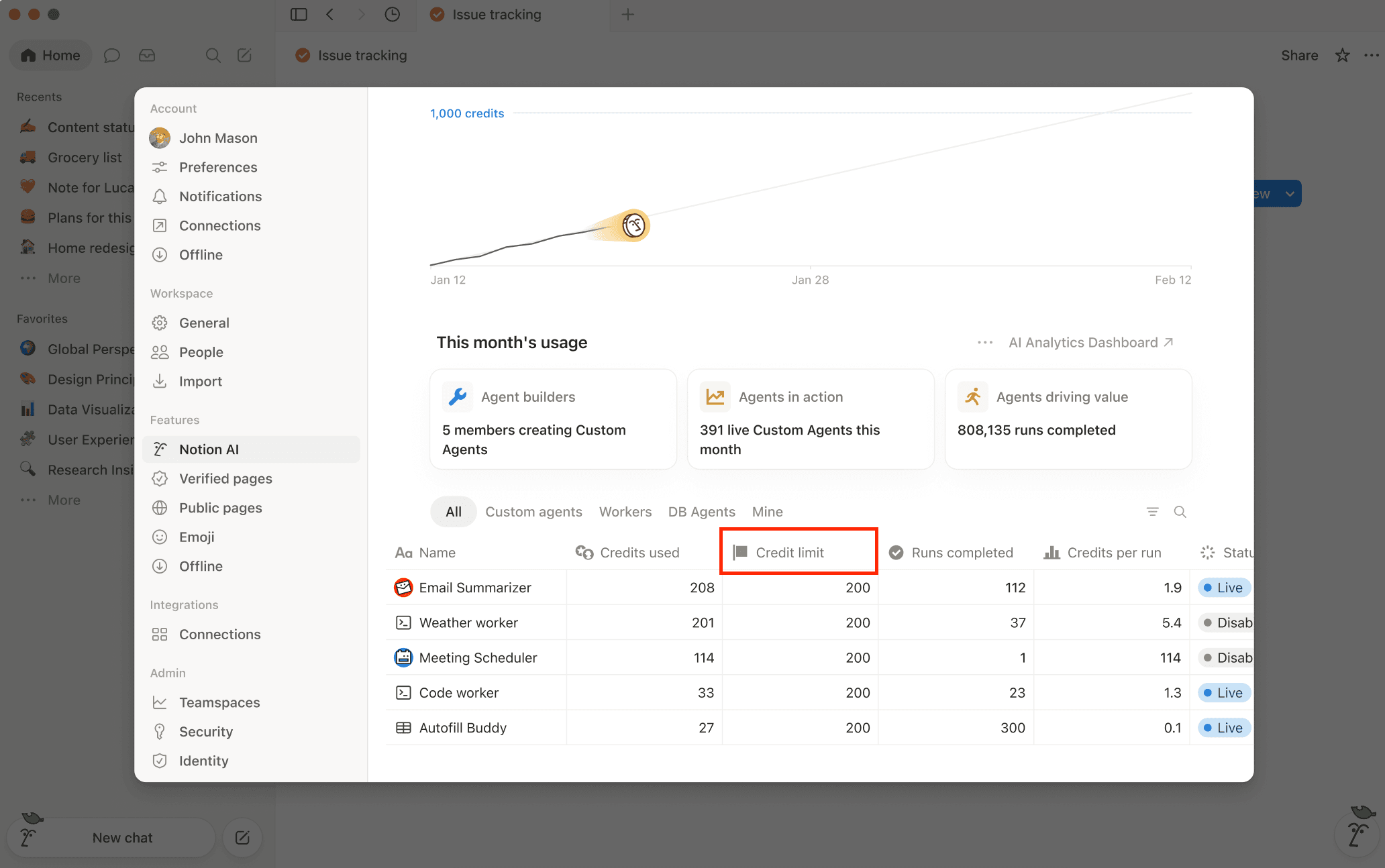
Once your first agents are up and running, you'll start seeing what they actually deliver. Some will become go-to tools for your team; others might need a tweak to hit their stride. Your credits dashboard helps you spot both. It shows which agents are running and where spend is concentrated. If something looks off, click in for a closer look.
1) What to look for in Insights
A Custom Agent's Insights dashboard gives agent creators and workspace admins a clear view into each agent's cost, performance, and adoption. Use it to spot where small tweaks can have the biggest impact.
Since creators can see the same view, you're not the only one keeping an eye on things.
To open it, select Insights from any Custom Agent's chat page.
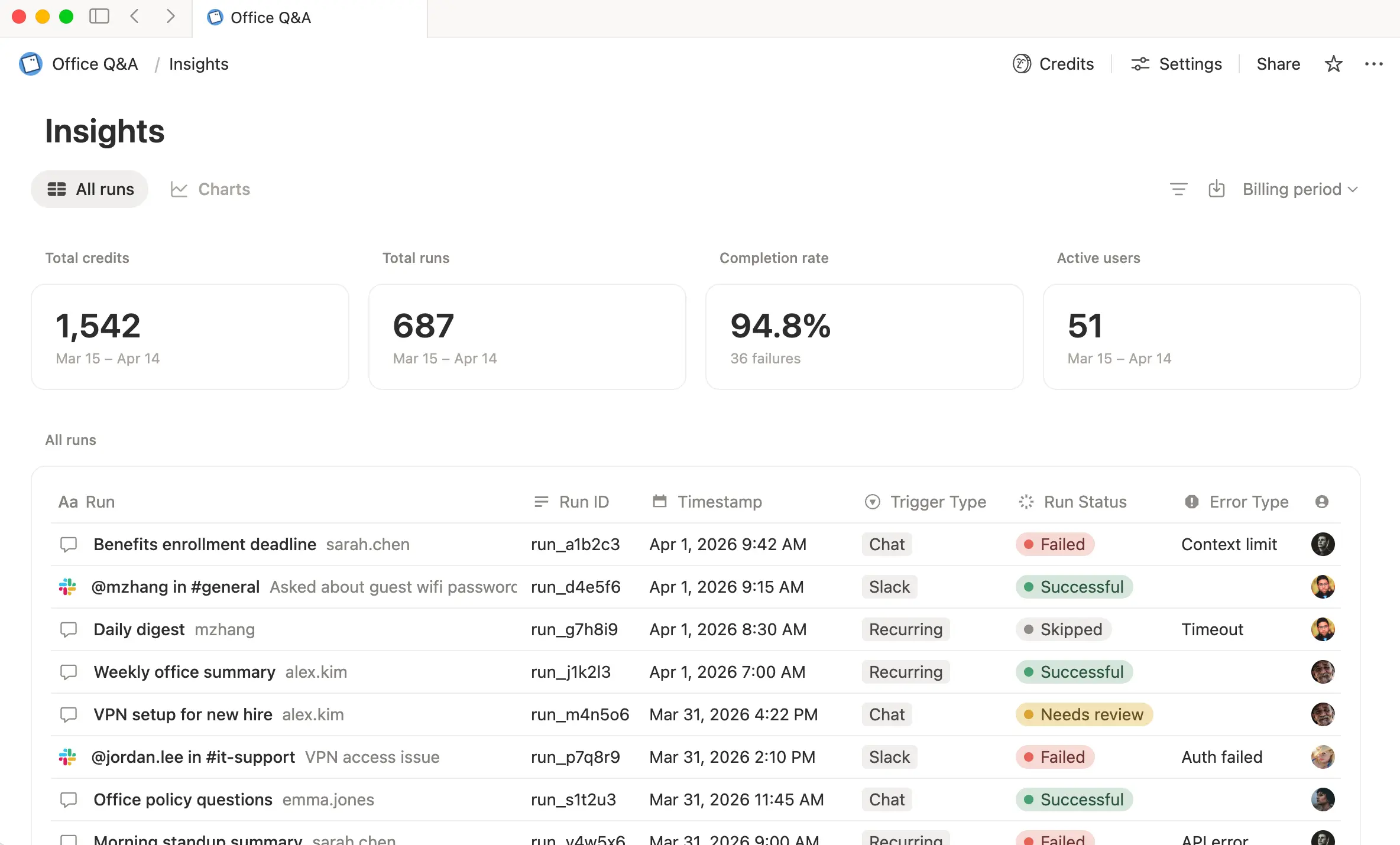
All chats gives you a granular view of an agent’s activity including status, triggers, credits consumed, number of runs, model used, and more.
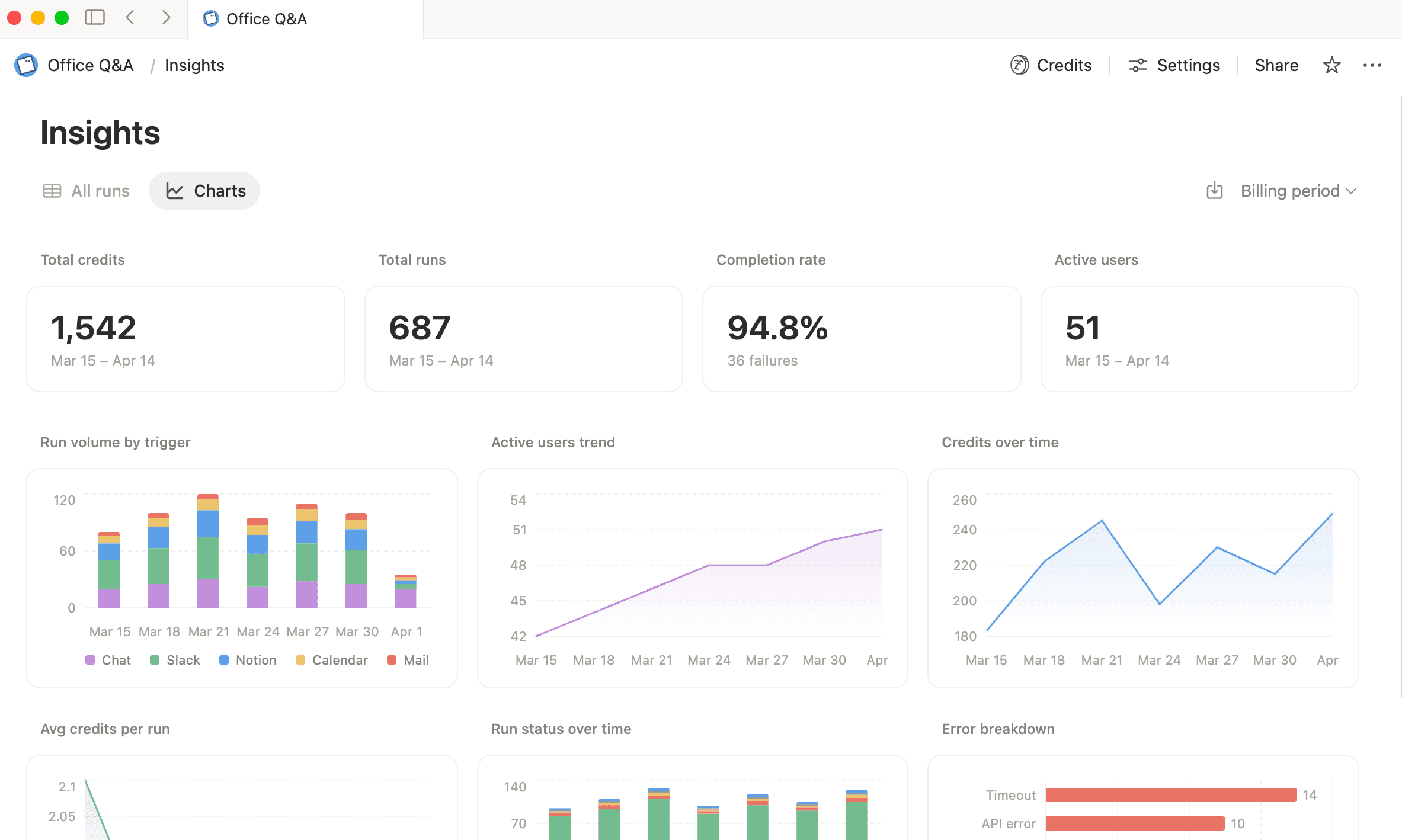
Charts gives a high-level overview of an agent’s cost, performance, and adoption over time.
Here are a few ways to put Insights to work:
Measure cost and performance as you iterate: Insights tightens your feedback loop. Check credits per run, make a change (an instruction tweak, a different model, a new trigger), and watch how the numbers shift over time.
Optimize high-spend agents: Start in the credits dashboard to spot your highest-spend agents, then open Insights to see their most expensive runs and any patterns that repeat. A narrower scope or a better-suited model is often all it takes.
Troubleshoot failed runs faster: When a run fails, Insights points you straight to the cause, like a specific tool call or a missing access. That makes it easier to address the root issue and keep the same failure from happening again.
Analyze a larger set of agents with CSV exports
2) Stay ahead of your credit spend
Notion notifies you when your workspace reaches 80% and 100% of its monthly credits, so you’ll have time to act before anything pauses.
If usage is tracking higher than expected, you can:
Top up credits to keep things running through the rest of the month
Increase your monthly credits if this level of usage is here to stay
Catching it at the 80% mark helps you stay ahead and avoid any disruption.
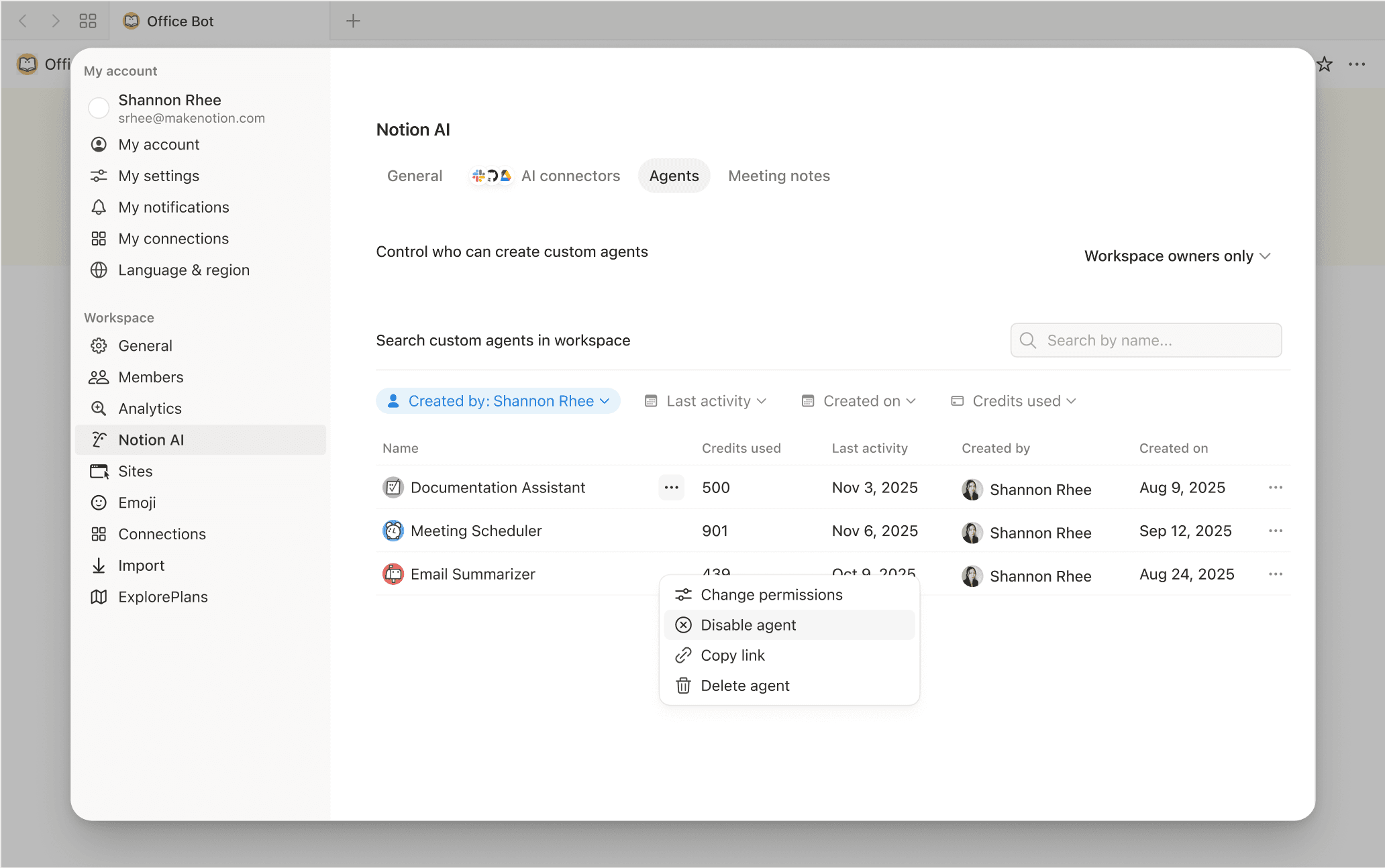
If something needs a closer look, you can disable an individual agent from Settings → Notion AI → Agents to investigate further.
Best practices to improve Custom Agents
Your first agents gave you real data and real wins. That puts you in a great position to expand thoughtfully.
Revisit your credit budget: Your early agents are your best forecasting tool. Rely on their actual usage to right-size your next purchase with confidence.
Widen creation access: Your pilot group proved what works. Consider opening creation to more teams, using what you learned to set clearer guidelines for new creators.
Share what worked: Document which agents delivered, what the prompts looked like, and the edge cases. When the next team wants to build something similar, they start from a proven pattern instead of from scratch.

Something we didn’t cover?